Datasets
A dataset in StreamPipes is stored operational data. It is the point where live machine events stop being only transient stream traffic and become something users can inspect later, analyze in charts, reuse in dashboards, export for other systems, and govern over time.
This makes datasets an important part of the platform story. Adapters and pipelines produce data in motion. Datasets represent data at rest. If you want historical analysis, auditability, exports, or chart-based exploration, you usually end up working with datasets.
Understand where datasets come from
The default way how datasets are created are pipelines when using the Data Lake sink.
A team creates an adapter or a pipeline, enables persistence, and lets StreamPipes store the resulting events continuously. The dataset then becomes the historical record of that live source.
A pipeline cleans, enriches, or aggregates raw input and writes the result as a dataset. In practice, these datasets are often the best source for dashboards because they already contain business-ready fields instead of raw machine payloads.
There are also short-hand features to create datasets directly from an adapter (which internally creates a pipeline upon start of the adapter) and by CSV import. In this case. a team already has historical data in files and wants to start with analysis immediately, even before a live connection is available.
Think of datasets as durable context
A raw machine stream may be useful for live processing, but a persisted dataset is what lets another team come back tomorrow, open the same data again, build charts on top of it, and compare current behavior with last week.
Dataset Overview
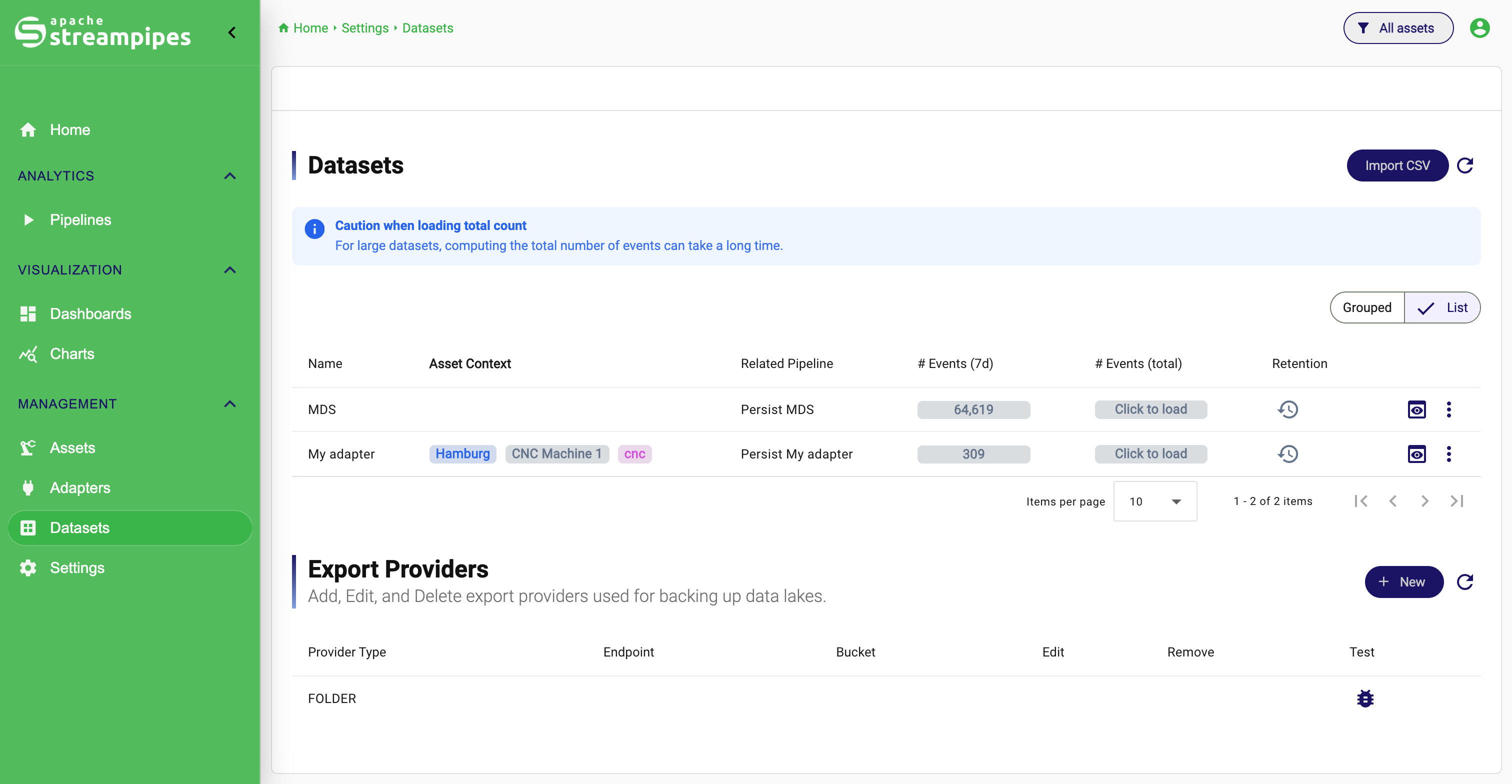
Open the dataset workspace
Open Datasets from the main navigation. The table gives a compact operational view of what is stored in the system and whether the stored data is still active.
The most useful habit is to read the table as a quick health and scale view. Name tells you what you are looking at. Related Pipeline helps explain the origin or relation of the dataset. # Events (7d) answers whether fresh data arrived recently. # Events (total) tells you how large the dataset is overall. Retention shows whether long-term cleanup or export has been configured. The action menu is where preview, download, permissions, truncation, and deletion live.
If your installation uses assets, datasets can also be understood in industrial context rather than only by technical name. That becomes important once several lines or machines produce similar measurements and users want to navigate by equipment instead of by table rows.
Start with two basic checks: freshness and size
When users open datasets for the first time, they usually want to answer one of two questions. Is data still arriving, and how much data is stored already?
Check recent activity
The # Events (7d) column answers the first question. It shows how many events arrived during the last seven days and is therefore the fastest way to see whether a dataset is still active.
Use this when you want to confirm that a machine is still sending data, verify that persistence is still enabled, or check whether a processing flow has stopped upstream.
If the number stays at zero even though the source should be active, the problem is usually not the dataset itself. It is more likely that the adapter is disconnected, the pipeline is stopped, or the persistence step is no longer writing data.
Load the full size on demand
The # Events (total) column answers the second question, but StreamPipes loads that number only when you ask for it. Counting all events can be expensive on large datasets, so the UI starts with Click to load.
To load the total, open Datasets, find the row, and click Click to load in the total-count column. After the spinner disappears, StreamPipes shows the full number of stored events.
This is the right check before exporting large datasets, validating whether a historical import completed as expected, or comparing the relative size of several retained stores.
Preview the dataset before you build on it
Before a dataset is used in charts or shared with other teams, it is worth opening the preview once. The preview action shows a representative stored event so you can confirm that fields, timestamps, and transformations look the way you expect.
To open the preview, open Datasets, find the row, and click the preview action. This is especially useful after an import, after a schema adjustment in the source adapter, or after a pipeline change that may have added, removed, or renamed fields.
Preview is a cheap validation step
A team imports one week of machine history from CSV and sees the row count they expected. That still does not prove the timestamp column was interpreted correctly. One preview is usually enough to catch that kind of problem before the data reaches charts and dashboards.
Import CSV data when the live connection is not the starting point
CSV import is the fastest way to create datasets from historical machine data, vendor exports, test data, or migrated records from another system. The import flow is deliberately guided so users can validate the file structure before anything is written permanently.
Import CSV Data
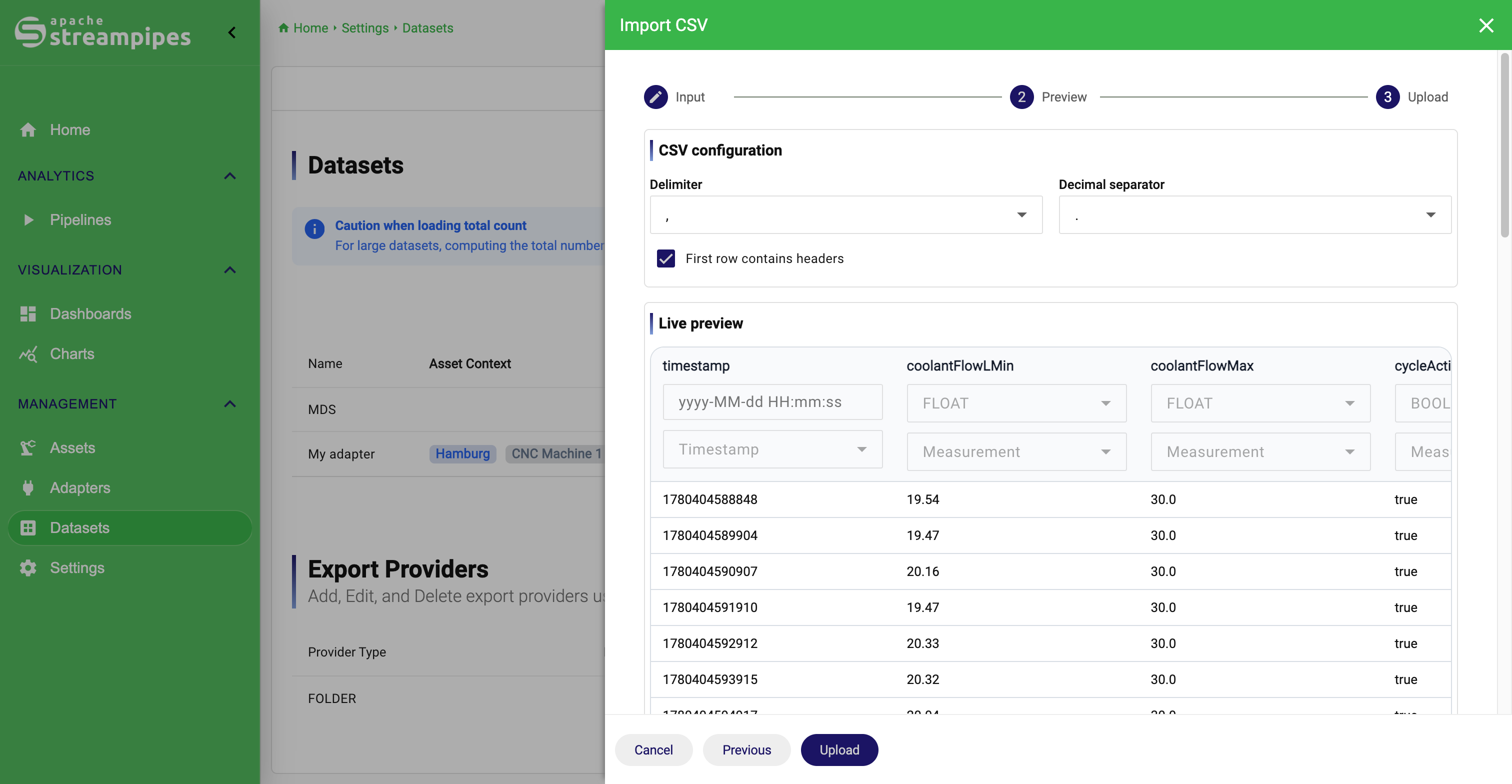
You would typically use CSV import when a machine vendor provides data history as files, when dashboards should be prepared before the live source exists, or when legacy historian exports need to be brought into StreamPipes for comparison and reuse.
Upload the file and choose the target
Open `Datasets`, click `Import CSV`, upload the file, and decide whether StreamPipes should create a new dataset or append to an existing one.
Validate parsing in the preview
Adjust delimiter, decimal separator, and header handling until the preview table matches the actual file structure.
Assign the timestamp column
Mark the column that represents event time and, if needed, provide the timestamp pattern so StreamPipes can parse string values correctly.
Upload and verify the result
Start the upload, then confirm the import by checking the event count and opening the dataset preview.
One decision matters more than it may seem at first: whether to import into a new dataset or into an existing one. Create a new dataset when the file represents a different measurement or a different business object. Append to an existing dataset only when the schema is genuinely the same and the new file continues that exact history.
When importing into an existing dataset, StreamPipes validates the incoming file against the current schema. That protects downstream charts and dashboards from silent schema drift. If the existing dataset expects timestamp and the new file provides event_time, StreamPipes warns you instead of quietly mixing incompatible structures.
Download datasets when data must leave the platform
Datasets are also a handover point to external consumers. Sometimes a process engineer wants to inspect values in a spreadsheet, sometimes a data scientist needs an offline sample, and sometimes one team needs to share an extract for incident analysis.
To download a dataset, open the row action menu, click Download, configure the export dialog, and start the export. The exact export shape depends on the dialog options, but the operational idea is simple: StreamPipes remains the source of truth while still letting data move into external workflows when required.
Download Datasets
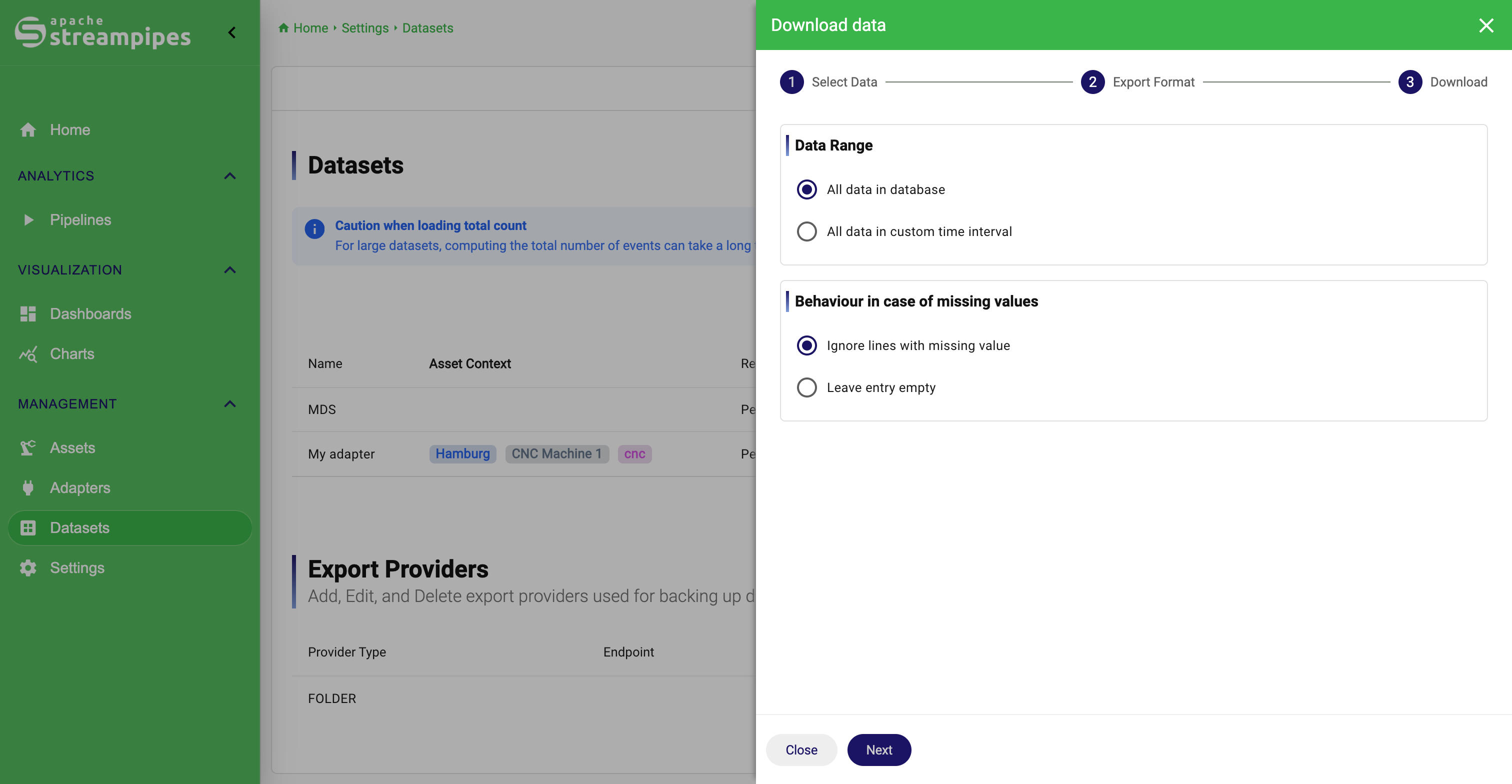
Current export options are CSV, JSON and Microsoft Excel. In case you want to export data in Excel format, it is also possible to upload a template that will be used to append data to a formatted spreadsheet.
Configure retention when stored data keeps growing
Retention is where dataset operation becomes long-term platform operation. Machine data often grows continuously, and not every dataset should remain in the active store forever. A retention rule lets you decide what should happen to older data after a certain age.
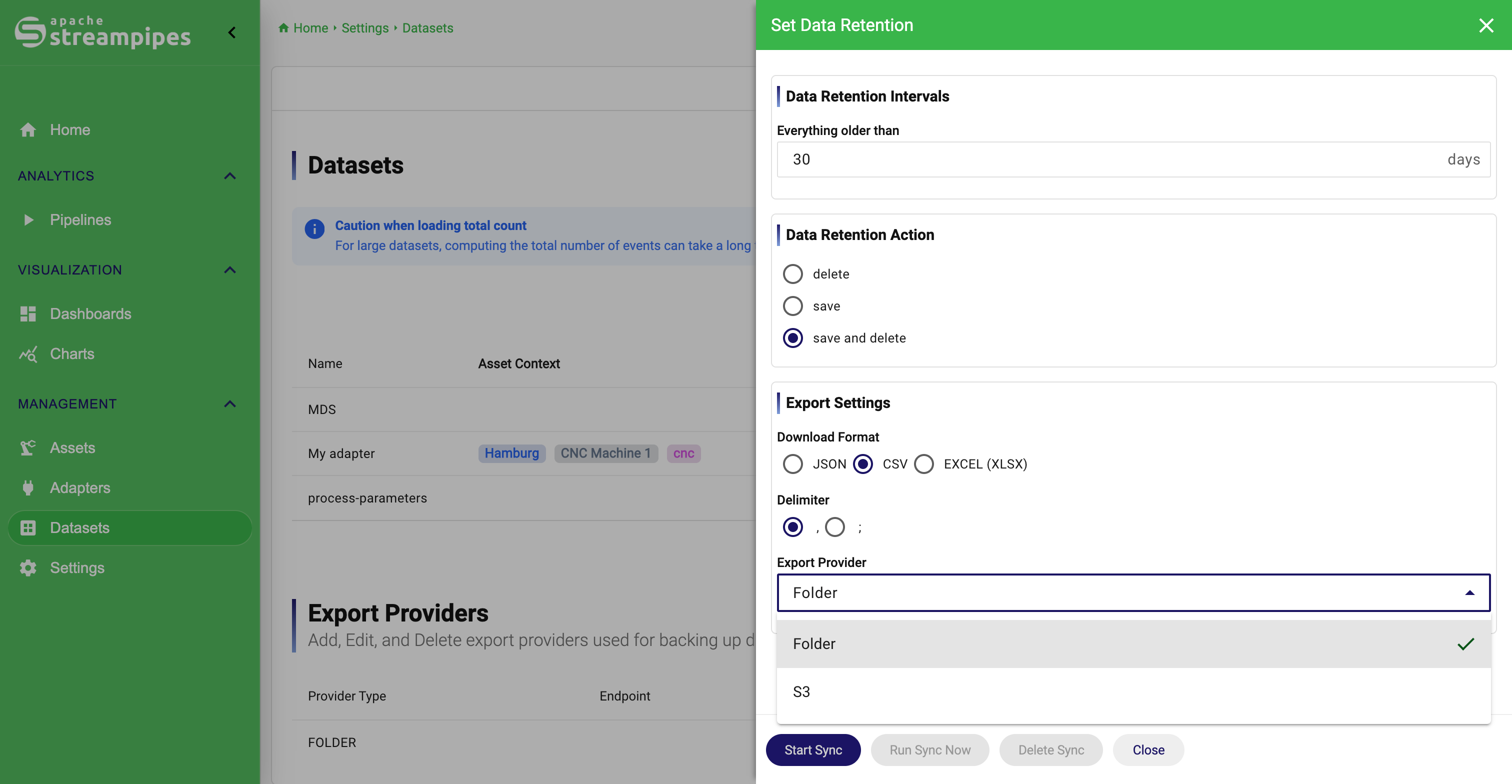
Open Datasets, find the row, and click the history icon in the Retention column. The dialog lets you define which data age is affected, how often the rule runs, and which action should happen.
The three actions are straightforward. Delete removes old data from the active dataset. Save exports older data but keeps it in the active store. Save and Delete exports it first and then removes it from the active store.
The right choice depends on the purpose of the dataset. High-frequency operational telemetry may only need a rolling in-platform window. Compliance-related data may need export without deletion. Long-running machine history often benefits from archive-first cleanup.
If the action includes saving data, the same dialog also requires export settings such as output format and provider. In the UI, select Save or Save and Delete, choose the export format, configure the CSV delimiter if relevant, select the export provider, and then save the rule with Start Sync.
Once a rule exists, the same dialog can be used operationally. Run Sync Now executes the configured rule immediately, which is useful for testing, and Delete Sync removes the stored retention configuration.
Configure Retention
Use export providers as shared retention infrastructure
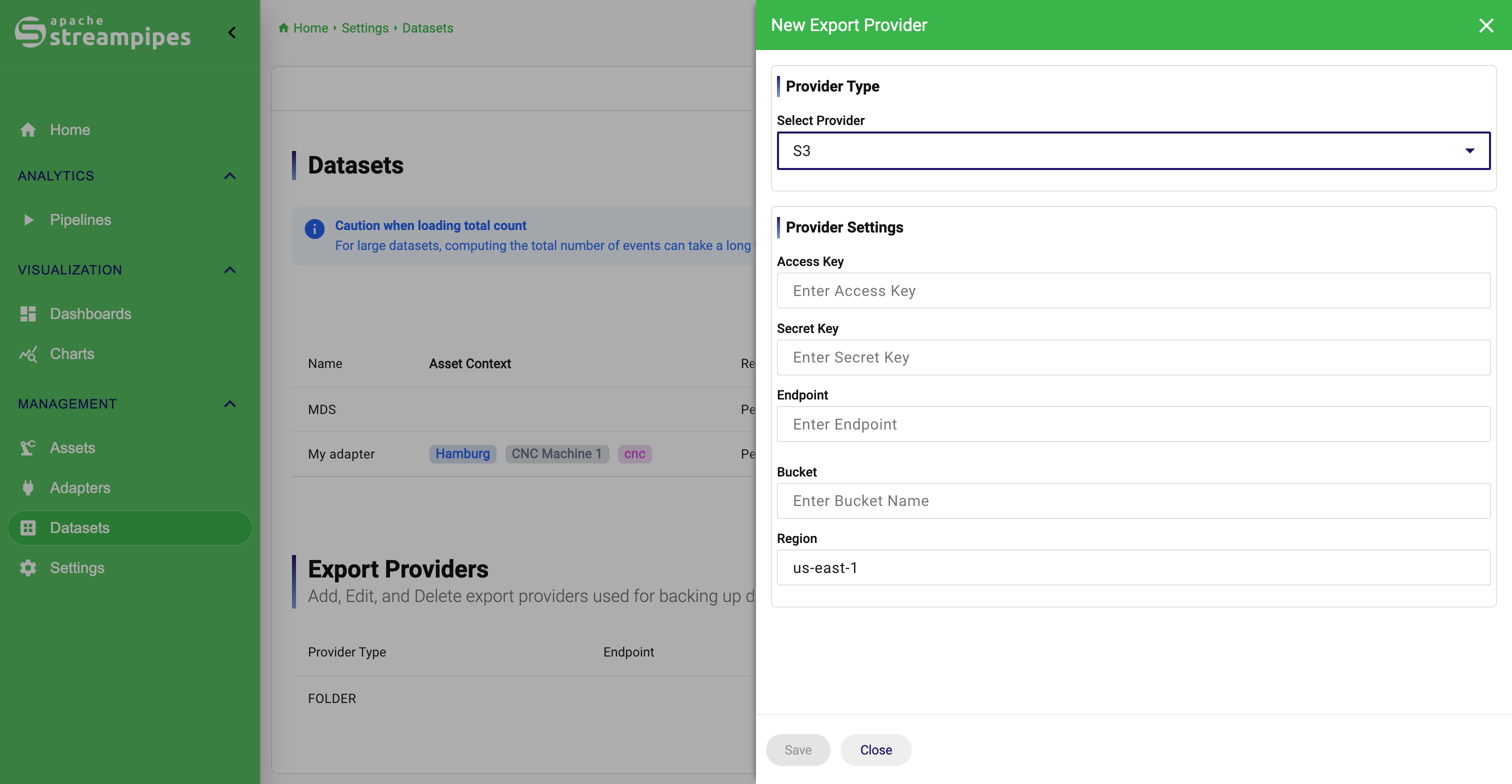
Export providers define where retained data should be sent when a retention rule includes Save or Save and Delete. In the current UI, provider management appears in the lower area of the datasets page and is typically an administrator task rather than a daily user task.
The practical pattern is to configure the provider once, test it, and then reuse it across several dataset rules. That keeps retention predictable and avoids copy-pasting infrastructure details into every single dataset workflow.
S3 export provider dialog for datasets
Know the difference between truncating data and deleting the dataset
StreamPipes distinguishes between clearing stored events and removing the dataset itself, and that distinction matters.
Use Truncate data when the dataset identity should remain but the stored events should be cleared. This is common in test systems, demos, or repeated commissioning workflows. To do it, open the row action menu, click Truncate data, and confirm the dialog.
Use Delete dataset when the dataset should disappear completely. Open the same action menu, click Delete dataset, and confirm the dialog. StreamPipes protects you here by blocking deletion when a running pipeline still depends on the dataset.
Manage permissions at the dataset level
Datasets often sit between several roles. One team may own ingestion, another may consume charts, and a third may be responsible for audit or export. For that reason, permission management is available directly from the dataset row.
Open the action menu, click Manage permissions, and update access in the dialog. This keeps ownership and consumption separate without duplicating the stored data itself.