Assets are the backbone of StreamPipes

If you have used StreamPipes for a while, you will have noticed that the number of things in it grows quickly. One machine easily ends up with an adapter, a persisted dataset, two or three pipelines, a handful of charts and a dashboard. Multiply that by a line, and then by a plant, and the lists in the UI stop being useful. Everything is there, but you have to remember what it is called.
Assets are our answer to that. They let you describe the plant the way people on the floor think about it, as plants, lines, machines and components, and attach all of those technical resources to the object they belong to. Over the past year most of the UI has been rebuilt around this idea, and in this post I want to explain what that means in practice.
The idea in one sentence
An asset is a real-world thing: a plant, a line, a machine, a station, a subsystem. Assets can be nested, so a plant contains lines and a line contains machines. Each asset can be linked to the StreamPipes resources that belong to it. Once those links exist, you can start from the machine and find everything around it, instead of starting from a list of adapters and working out which one is which.
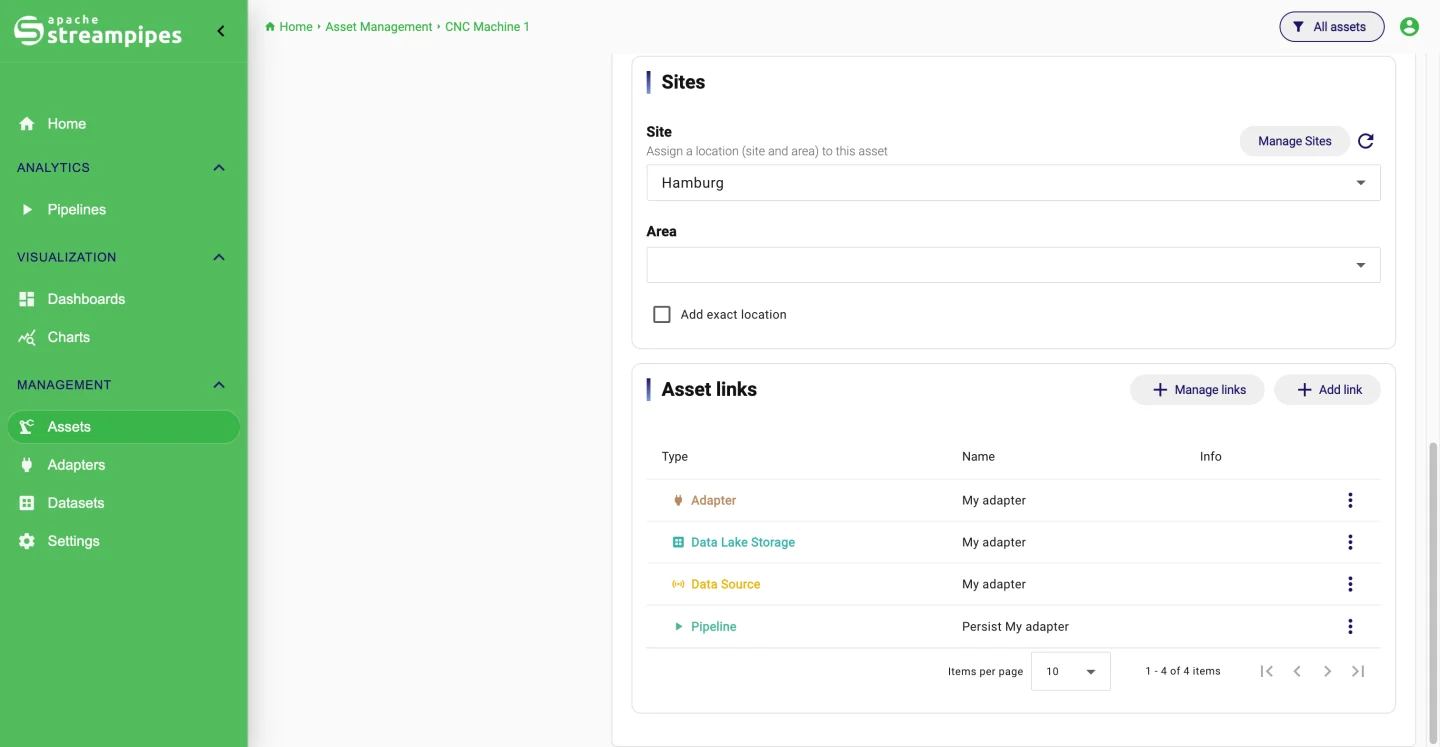
Sites add a second dimension. A site is shared location context, such as a factory, a building or a hall, with an optional area. You define a site once and assign it to as many assets as you like. An asset can also carry an exact position, which is what puts it on the map.
Start on the home screen
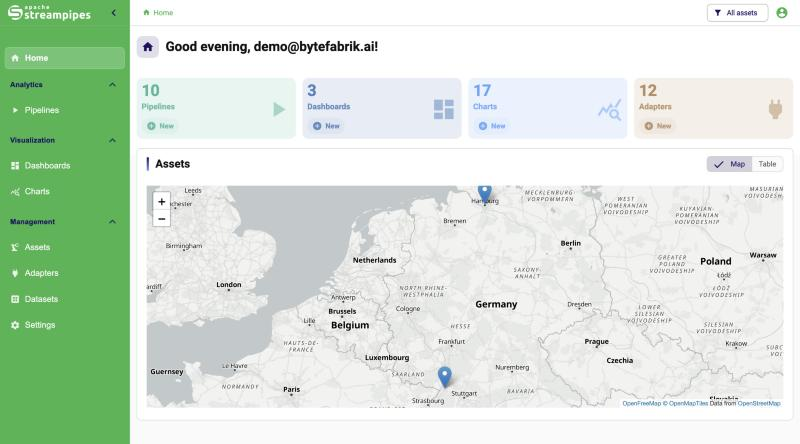
The home screen is the first place where this shows. Instead of a list of modules, it opens with your assets. In table mode every row is one asset with its type, location and a row of icons for the linked resources, and each icon takes you straight to that adapter, pipeline, chart or dashboard. Switch to map mode and the same assets appear as markers on a map, which is the view we see most often on large screens in control rooms.
One page per machine
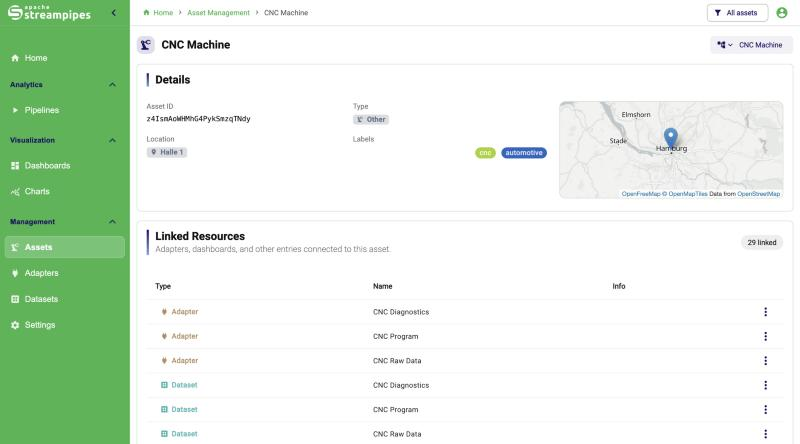
Open an asset and you get a detail page: identifier, type, labels, the site and area it belongs to, a small map if a position is set, and the full list of linked resources. The demo machine below has 29 of them, three adapters, their datasets, the pipelines that persist and process the data, and the charts and dashboards built on top. This is the page we point people to when they ask "where is the data for this machine".
Asset context everywhere else
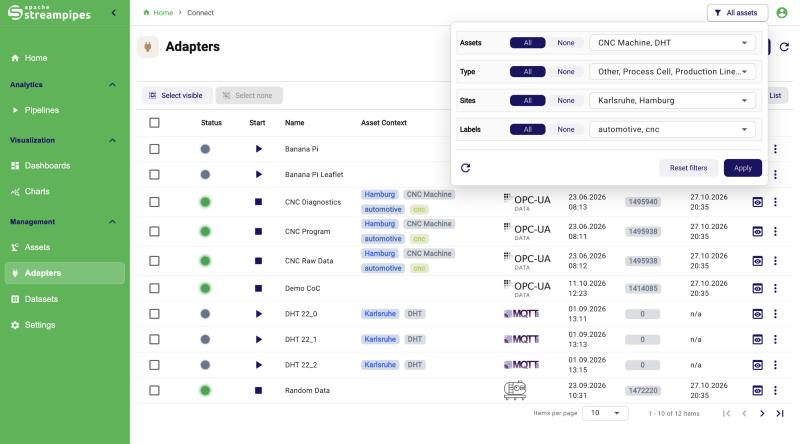
The part that took the longest, and that I think matters most, is that assets are not confined to their own module. Every resource list in StreamPipes, adapters, pipelines, datasets, charts and dashboards, shows the asset context of each row and can be filtered by it. The filter button in the top right lets you narrow a list by asset, by asset type, by site and by label, and the filter is kept while you edit resources.
So an operator responsible for the Hamburg plant can set the filter and see only the adapters, pipelines and dashboards for that plant. A maintenance team interested in everything tagged critical can do the same with a label.
New resources pick up the context automatically where it makes sense. When a pipeline persists a stream into a dataset, that dataset is assigned to the same asset as the pipeline.
Modelling your own plant
The asset editor shows the hierarchy on the left and the details of the selected node on the right. A few things we learned while building and using it:
- Start with the root that people navigate from. For some teams that is the plant, for others a single line. The root does not have to be the most detailed object, it is the entry point.
- Mirror how people talk about the equipment. If the packaging line is "filler, capper, labeler" in daily conversation, those are the sub-assets. If maintenance thinks in subsystems, model subsystems. The tree can be reordered and nodes can be moved to another parent later, so the first version does not have to be final.
- Use labels for the lightweight stuff and custom fields for the structured stuff.
criticalortestbenchare labels. Vendor, serial number and commissioning date are custom fields. Custom fields work on sub-assets too, so a machine and its components can carry different sets. - Assign the site at the root, the exact position only where it is needed. Not every pump needs a map pin. The ones that do can have one without forcing the same detail on everything else.
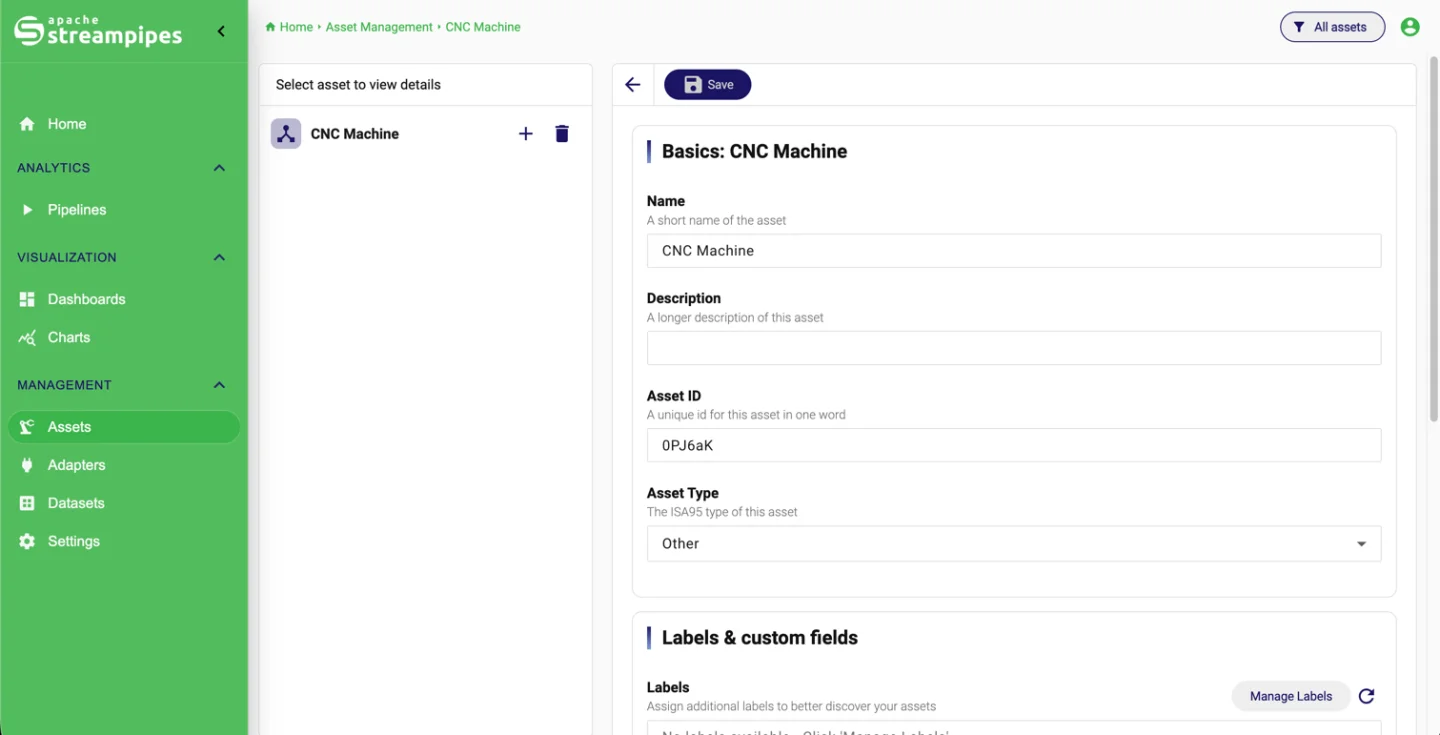
Linking resources is the last step, and the one most often forgotten. The editor lets you add links one at a time or open a dialog to attach several at once. Our rule of thumb is to model the hierarchy first, assign the site second and link resources third. The structure should exist before the technical objects are hung onto it.
Permissions follow the model
Assets have their own permissions, so a shared installation can give one team edit rights on their line and read access on the rest. Combined with the filters, this is how we run installations where several groups share one StreamPipes instance without seeing each other's clutter.
Where this is heading
Most of what is shown here is in the development version of StreamPipes and will ship with the next release; parts of it are already in 0.98.0. The direction is clear: assets are becoming the way you navigate the platform, and new features are designed with that context in mind from the start. If you run StreamPipes today, it is worth taking an afternoon to model your plant. The benefit grows with every resource you add afterwards.
The assets and sites documentation covers the editor step by step. If you have ideas for what asset context should do next, the mailing lists and GitHub Discussions are the right places.