Manage Extensions
The Extensions tab in Configuration is the administrative catalog for installable StreamPipes functionality. This is where administrators review which adapters and pipeline elements are available to the instance, install new ones, uninstall existing ones, update installed items, and manage their permissions.
This page focuses on the current Configuration > Extensions screen.
Extensions Catalog
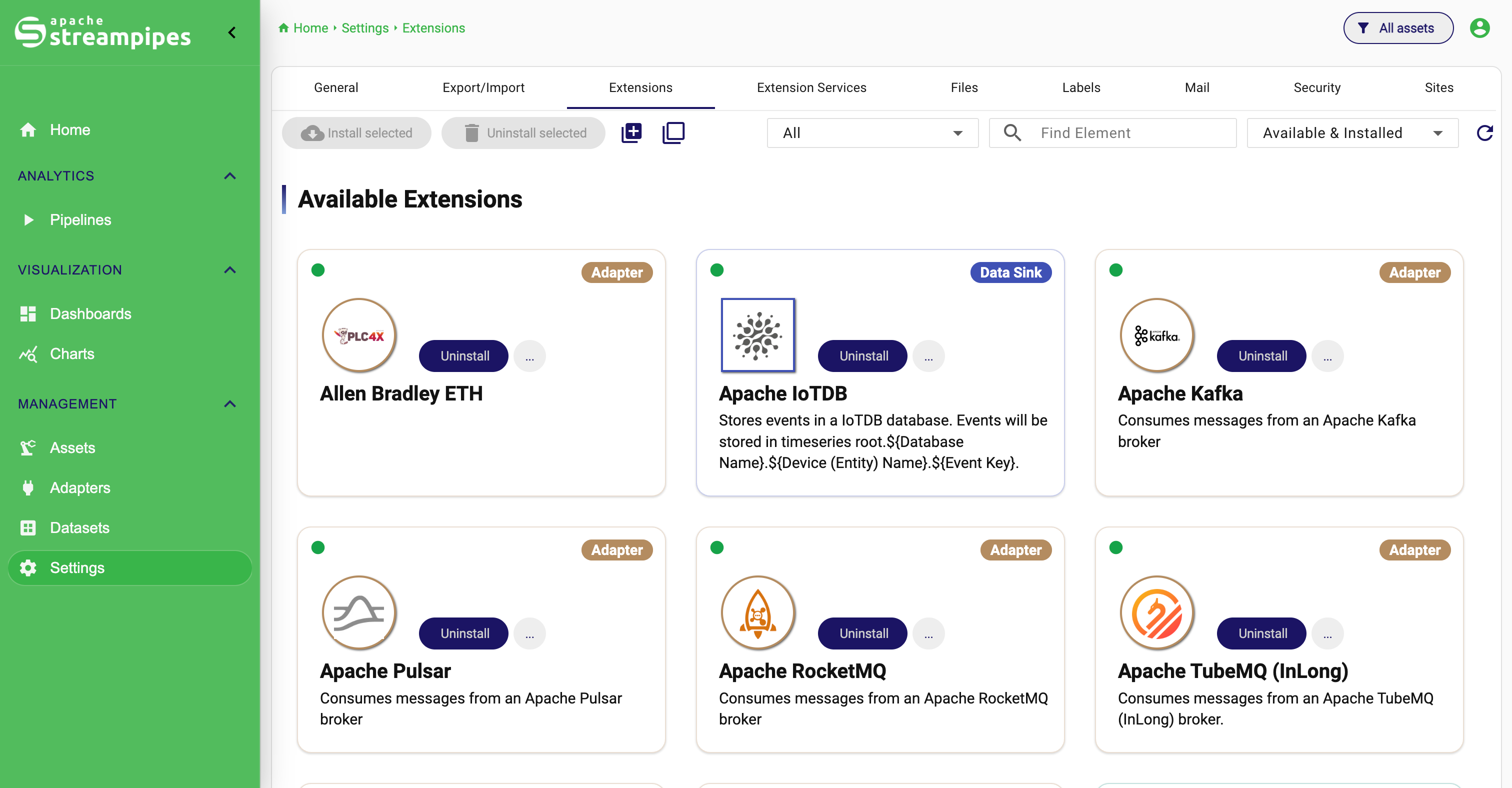
What the Extensions tab is for
The Extensions tab is not where users create adapters or build pipelines. It controls which extension items are available in the instance in the first place. Administrators use it to inspect the catalog, install adapters or pipeline elements, remove items that should no longer be offered, refresh installed items, and manage access to those installed capabilities. In other words, this page is part of running StreamPipes as a platform rather than using StreamPipes as an end user.
Open the page
To open the Extensions catalog:
- Go to
Configuration. - Open the
Extensionstab.
Only administrators should manage installations here.
Understand the screen layout
The screen is organized around three tasks. At the top sit the bulk-action controls for multi-item operations. Next come the filters and search field, which narrow the catalog before you act. The main area is the card-based catalog itself. Each card shows the extension name, a short description, the extension type, the current state, and the actions that are currently possible. This makes the page equally usable for browsing and for lifecycle operations.
Read the extension cards
Each card represents one installable extension item.
Understand availability and installation state
Two states matter most. Available means the item exists in the catalog and can be discovered by StreamPipes. Installed means it is already active in the instance and can be used in the appropriate feature area. An item can therefore be available without being installed, which usually means the platform knows about it but users cannot yet work with it.
Example:
An adapter may appear in the catalog, but until it is installed it will not show up as a usable connector option in Connect.
Understand extension types
The catalog groups items into four main categories: Adapters, Data Streams, Data Processors, and Data Sinks. These categories are not only cosmetic. They help operators narrow the catalog to the part that matches the current need, whether that is connectivity, stream sources, processing logic, or output targets.
Example:
If a team needs a new ingestion option for machine connectivity, start with Adapters. If they need a new calculation or filtering step in pipelines, look at Data Processors.
Internally managed items
Some cards are marked as internally managed by StreamPipes. These items are not editable in the same way as normal catalog entries.
If a card is internally managed, you should treat it as part of the system-managed installation state rather than something you can freely install or uninstall from this page.
Filter and search the catalog
The catalog is designed to be filtered before you act on it. That is important because installation work is easier and safer when the visible set already matches the use case you are working on.
Filter by category
To filter by category:
- Open the category dropdown at the top of the page.
- Select the category you want to inspect.
This is the fastest way to reduce noise when you already know what type of extension you are looking for.
Example:
When onboarding a new protocol or source system, filter to Adapters first instead of scanning the full catalog.
Filter by installation status
To use it:
- Open the installation-status dropdown.
- Select the state you want to review.
This filter becomes especially useful in two situations. Use Installed when you want to audit what is currently active in the instance. Use Available when you want to find items that exist but are not installed yet.
Example:
If a user says a certain sink is missing in the pipeline editor, switch to Available and search for it. If it appears there, the problem is installation state, not product support.
Search by name
Use the Find Element search field when you already know part of the extension name. It is especially helpful when the category still contains many items and you want to move directly to one connector family or one processor type.
To search:
- Click the
Find Elementfield. - Enter part of the element name.
- Review the filtered cards.
Reload the catalog
Use the reload button to refresh the catalog state from the backend.
Do this after installation or uninstallation work, or whenever you suspect the displayed state is stale.
Select items for bulk actions
The page supports bulk installation and bulk uninstallation. Select one editable card or several, use Select all when the current filtered view already matches the intended scope, and use Select none to clear the working set again. Only editable items can be selected. One useful safety feature is that changing the search term or installation-status filter clears the current selection automatically, which reduces the risk of applying a bulk action to the wrong visible set.
Example: If you are preparing a new instance for a team and need several adapters at once, bulk selection is faster and less error-prone than opening each card individually.
Install extensions
You can install either one extension at a time or several selected extensions in one run. The interaction differs slightly, but the underlying installation model stays the same.
Install a single extension
To install one item:
- Open
Configuration > Extensions. - Filter or search until you find the required card.
- Click
Installon that card.
This opens the installation dialog for that single item.
Use this path when you only need one additional adapter or pipeline element.
Install multiple extensions
To install several items together:
- Select the required extension cards.
- Click
Install selected.
This opens the same installation dialog, but with all selected items queued. Use this path when you are preparing an instance for a new team or use case and already know the set of required extensions.
Work through the installation dialog
The installation dialog is intentionally simple. It starts with a preview of the elements that are about to be installed and then moves into the actual installation step, where progress is shown per item.
To complete the installation:
- Start the install action from the page or a card.
- Review the listed items in the dialog.
- Decide whether
Make available to all users with appropriate roleshould stay enabled. - Click
Next. - Watch the installation progress for each item.
- Click
Closewhen the process finishes.
Decide whether to install as a public element
The installation dialog includes the checkbox Make available to all users with appropriate role.
Use this setting when the installed extension should be broadly available to users who already have the right role for that extension family. This is not only an installation choice; it is also an availability decision at install time.
Example: If you install a commonly used sink that should be usable across multiple teams, leaving this option enabled is usually the right choice.
Read the installation progress
During installation, StreamPipes processes items one after another and shows a status for each one. In practice, the important distinction is simply whether an item is still waiting, completed successfully, or failed with an error. That matters especially in bulk installs, because some items may succeed while others fail in the same run.
Uninstall extensions
The uninstall flow mirrors the install flow, but the operational risk is usually higher because removal can affect existing teams and editing workflows.
Uninstall a single extension
To uninstall one installed item:
- Open
Configuration > Extensions. - Find the installed card.
- Click
Uninstall. - Confirm the operation in the dialog.
- Review the progress and close the dialog.
Uninstall multiple extensions
To uninstall several items together:
- Select the installed cards you want to remove.
- Click
Uninstall selected. - Review the preview in the dialog.
- Click
Next. - Wait until the statuses are complete.
- Close the dialog.
Use uninstallation carefully because removing an extension affects what users can create or edit later.
Example: If you remove a processor that teams still rely on for editing existing pipelines, the administrative cleanup may create confusion or block later changes.
Update installed extensions
Installed cards provide a menu with additional actions. One of them is Update.
To update an installed extension:
- Open
Configuration > Extensions. - Find the installed card.
- Open the card menu.
- Click
Update.
Use this when the installed item should be refreshed from the available catalog source. It is a maintenance action rather than a normal end-user workflow.
Manage permissions for installed extensions
Installed cards also provide Manage permissions.
To open it:
- Open
Configuration > Extensions. - Find the installed extension card.
- Open the card menu.
- Click
Manage permissions.
Use this when access to a specific installed extension should be controlled more explicitly. This matters most in shared environments where not every team or user should be able to use every available adapter or pipeline element just because it is technically installed.
Typical workflows
Prepare an instance for a new ingestion use case
- Open
Configuration > Extensions. - Filter to
Adapters. - Search for the required connector family.
- Install the relevant items.
- Reload the catalog.
- Confirm that the adapters are now available in
Connect.
Prepare a pipeline workspace for a team
- Filter to
Data ProcessorsandData Sinks. - Search for the required processing and output elements.
- Select the needed items.
- Click
Install selected. - Review the installation statuses.
- Verify that users can now use them in the pipeline editor.
Audit what is already active
- Set the installation-status filter to
Installed. - Review the catalog.
- Use the card menu for
UpdateorManage permissionswhere needed.
Common pitfalls
The most common mistake is to confuse installation with usage. Installing an extension only makes it available in the instance; it does not automatically mean the feature is already being used correctly downstream. The second common mistake is to uninstall items before checking whether users still depend on them. In larger catalogs, category and installation filters should be used together, and after changes the catalog should be reloaded so the visible state stays trustworthy. During bulk actions, per-item statuses matter because partial failures are entirely possible.