Extension Services
The Extension Services tab in Configuration is the operational view for the services behind StreamPipes extensions. While the Extensions tab controls which adapters and pipeline elements are installed, Extension Services shows which services are currently registered, which service-level settings they expose, and how OPC UA certificates are handled.
This page focuses on the current Configuration > Extension Services screen.
Extension Services
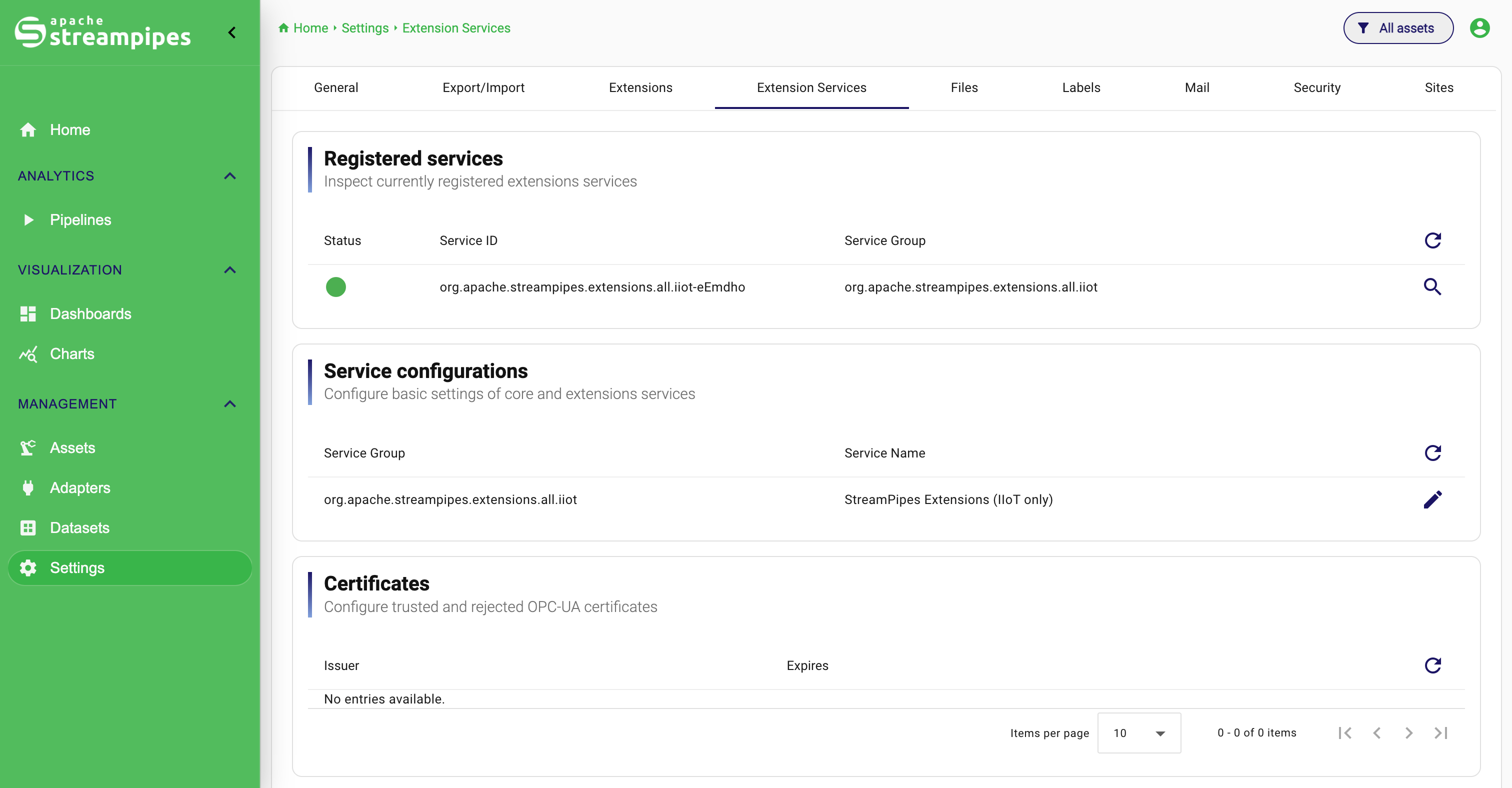
What the Extension Services tab is for
This page is for operational work on the services behind the extension catalog. It is the place to confirm that a service is registered, check its health, inspect its identity and location, update service-level runtime settings, and manage trusted or rejected OPC UA certificates. In other words, it is aimed at platform operators, not at end users creating adapters or pipelines.
Understand the difference between Extensions and Extension Services
The two configuration tabs are related, but they solve different problems.
Extensions decides which installable items such as adapters, processors, and sinks are available in the instance. Extension Services deals with the services that provide those items and the configuration those services need at runtime. In practice, you go to Extensions when something should become available to users, and to Extension Services when you need to inspect or influence the service behavior behind that feature.
Open the page
To open the screen:
- Go to
Configuration. - Open the
Extension Servicestab.
The page is organized into three sections: Registered services, Service configurations, and Certificates. Read from top to bottom, they move from service presence to service behavior and then to protocol trust management.
Inspect registered services
The Registered services section is the fastest health and inventory view for the service layer. The table shows the health state, the service ID, and the service group for every service currently known to the instance. Each row can also be opened in more detail, which is useful when the short row no longer gives enough context.
Read the service status
The status column uses a deliberately simple health indicator. A green marker means the service is HEALTHY; other states are shown as critical. That makes this section the natural first stop when a service-backed feature is missing or behaves unexpectedly.
Example: If a set of adapters is installed but not behaving as expected, checking the registration and health state of the providing service is a sensible first step before editing adapters themselves.
Refresh the service list
The table header includes a refresh action.
To reload the list:
- Open
Configuration > Extension Services. - In
Registered services, click the refresh icon.
Use this after deployment changes, service restarts, or whenever you expect the registration state to have changed.
Open service details
Each row provides View service details.
To inspect one service:
- Open
Configuration > Extension Services. - Find the service in
Registered services. - Click the details action on the right side of the row.
The details dialog exposes the service identity more clearly, including fields such as Service ID, Service Group, Location, and Tags. This is the place to go when you need to understand which instance is actually registered, where it runs, and how it identifies itself to StreamPipes.
Example: If multiple services are present, the dialog helps distinguish them by location and tags instead of relying only on a short row in the overview.
Update service configurations
The Service configurations section is where StreamPipes exposes runtime settings for core and extension services. The table stays compact at first, showing only the service group and service name. Configuration details appear only when you expand one row, which keeps the page readable even when several services exist side by side.
Open a configuration row
To edit a service configuration:
- Open
Configuration > Extension Services. - Scroll to
Service configurations. - Find the service you want to change.
- Click the edit icon in the row.
The expanded row reveals the configuration keys for that specific service. Use this area whenever a service needs runtime values such as connection details, feature toggles, or other service-specific operational parameters.
Understand the configuration form
Inside an expanded row, StreamPipes renders fields according to their type. Depending on the service, this can mean text inputs, number inputs, boolean checkboxes, or password fields. The form is therefore not decorative; it is a typed representation of the service contract. Where a help tooltip exists, use it. It often contains the operational explanation that the raw key name alone cannot provide.
Update a service configuration
To save changes for one service:
- Expand the service row.
- Review the available configuration keys.
- Change the relevant values.
- Click
Updateat the bottom of the expanded form.
After saving, the page reloads the configuration list. This reinforces the intended working model: update one service deliberately, verify the effect, then move on to the next one if necessary.
How to work with different field types
The exact fields differ from service to service, but the interaction pattern stays consistent: expand the row, change the relevant value, use the help text when needed, and update the configuration explicitly. Because these settings can directly affect runtime behavior, they should be treated as operational changes rather than as harmless metadata edits.
Example: If a service-level setting controls access to an external dependency, change the configuration here and then validate the feature that depends on that service instead of assuming the update is correct.
Manage OPC UA certificates
The Certificates section is the trust-management area for OPC UA communication. It lists certificates together with their issuer, their expiry information, and the actions needed to inspect, trust, reject, or delete them.
Refresh the certificate list
To reload the certificate table:
- Open
Configuration > Extension Services. - Go to
Certificates. - Click the refresh icon in the table header.
Use this after certificate-related changes or after connecting to systems that may introduce new certificates.
View certificate details
To inspect one certificate:
- Open the
Certificatessection. - Find the certificate in the table.
- Click
Details.
This opens the certificate details dialog so you can inspect the certificate before deciding whether to trust it, reject it, or remove it entirely.
Trust or reject a certificate
The current UI allows you to switch a certificate between trusted and rejected state directly from the table.
To change the state:
- Open
Configuration > Extension Services. - Go to
Certificates. - Find the certificate.
- Click
Trustif it is currently rejected, orRejectif it is currently trusted.
After the action, StreamPipes updates the certificate state and reloads the table. This is the normal way to resolve trust decisions without deleting the historical certificate entry from the system.
Delete a certificate
To remove a certificate entry:
- Open the
Certificatessection. - Find the certificate you want to remove.
- Click
Delete.
Use deletion carefully. In many cases, Trust or Reject is the better operational choice because the certificate remains known to the system, only with a controlled trust state.
Typical workflows
Investigate a service-backed feature problem
- Open
Configuration > Extension Services. - Check
Registered servicesfor the expected service and its health state. - Open the service details to inspect location and tags.
- Review
Service configurationsif the feature depends on service-level settings.
Update a service-level runtime setting
- Open
Service configurations. - Find the correct service by group and name.
- Expand the row.
- Change the required value.
- Click
Update. - Verify the affected functionality afterwards.
Resolve an OPC UA certificate issue
- Open
Certificates. - Refresh the list.
- Inspect the certificate details.
- Trust or reject the certificate based on the expected connection.
- Delete the certificate only if it should be removed entirely.
Common pitfalls
The most common mistake is to confuse installed extensions with registered services. One tab manages catalog items, the other manages the service layer behind them. The second common mistake is to change service-level settings and assume the job is done without validating the dependent feature afterwards. And finally, certificate deletion should be used more carefully than trust-state changes, because deletion removes the entry entirely instead of simply moving it between trusted and rejected states.