Integrate OPC UA data
OPC UA is one of the most common ways to integrate industrial devices and machine data into StreamPipes. The StreamPipes OPC UA adapter can read selected nodes from an OPC UA server, either in pull mode or in subscription mode, and it supports unsecured as well as signed or encrypted connections.
This page explains the practical workflow for connecting an OPC UA server in StreamPipes and how certificate trust is handled from the Configuration > Extension Services view.
Before you start
Before creating the adapter, make sure the following prerequisites are in place:
- the OPC UA extension is installed and available in
Connect - the OPC UA server is reachable from the StreamPipes extension service
- you know the endpoint URL, for example
opc.tcp://machine-gateway:4840 - you know whether the server expects anonymous access or username/password authentication
- you know which nodes you want to read, or at least how to browse to them
If the server requires signed or encrypted communication, you should also prepare the certificate handling described later on this page.
Typical scenario
A production machine exposes telemetry through an OPC UA server. The goal is to read a small set of machine values such as flow rate, temperature, and machine state and make them available in StreamPipes for dashboards, charts, or further processing.
Create the OPC UA adapter
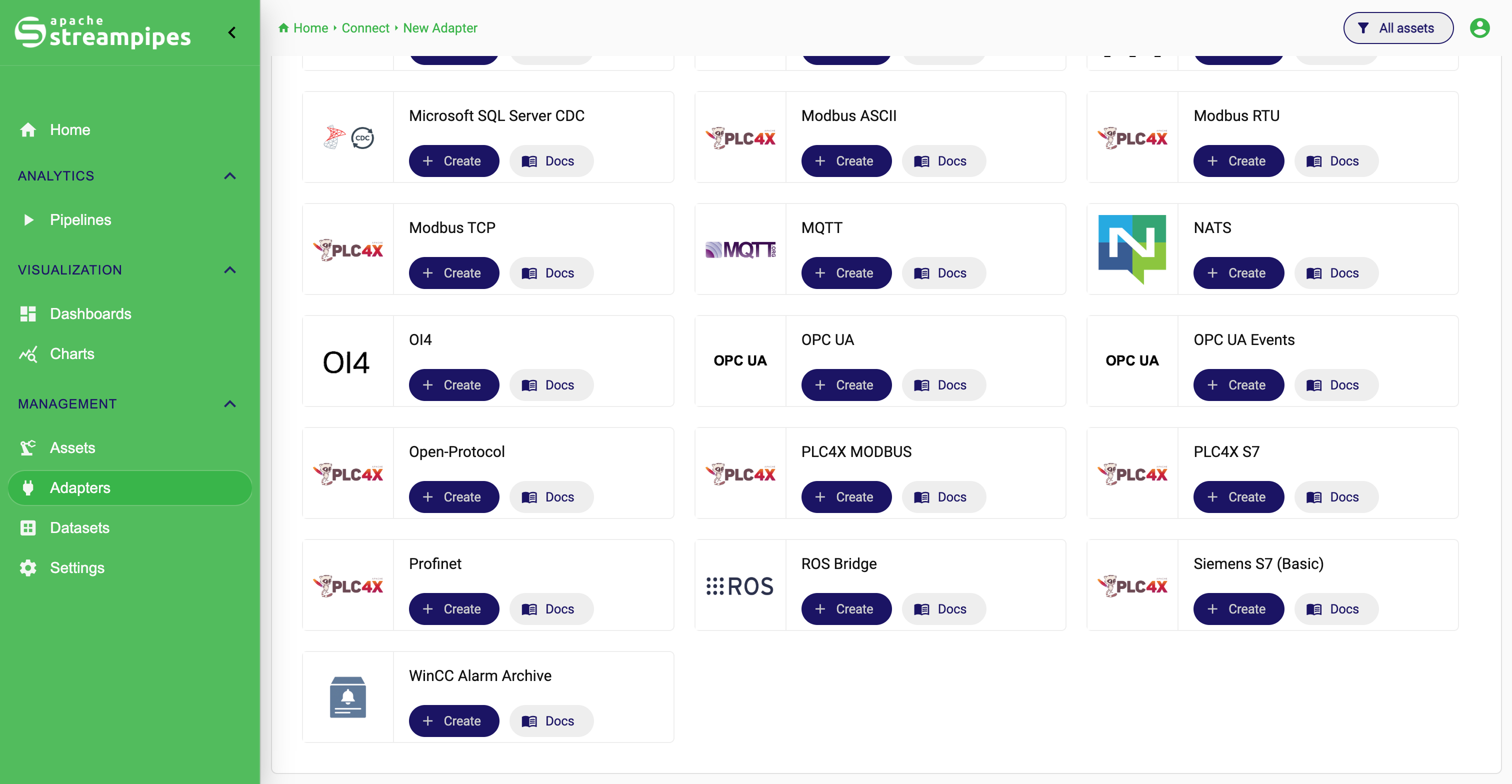
Open Connect, click New Adapter, and select OPC UA from the adapter catalog.
The adapter configuration starts with the protocol-specific settings.
OPC UA Adapter Selection
Choose pull mode or subscription mode
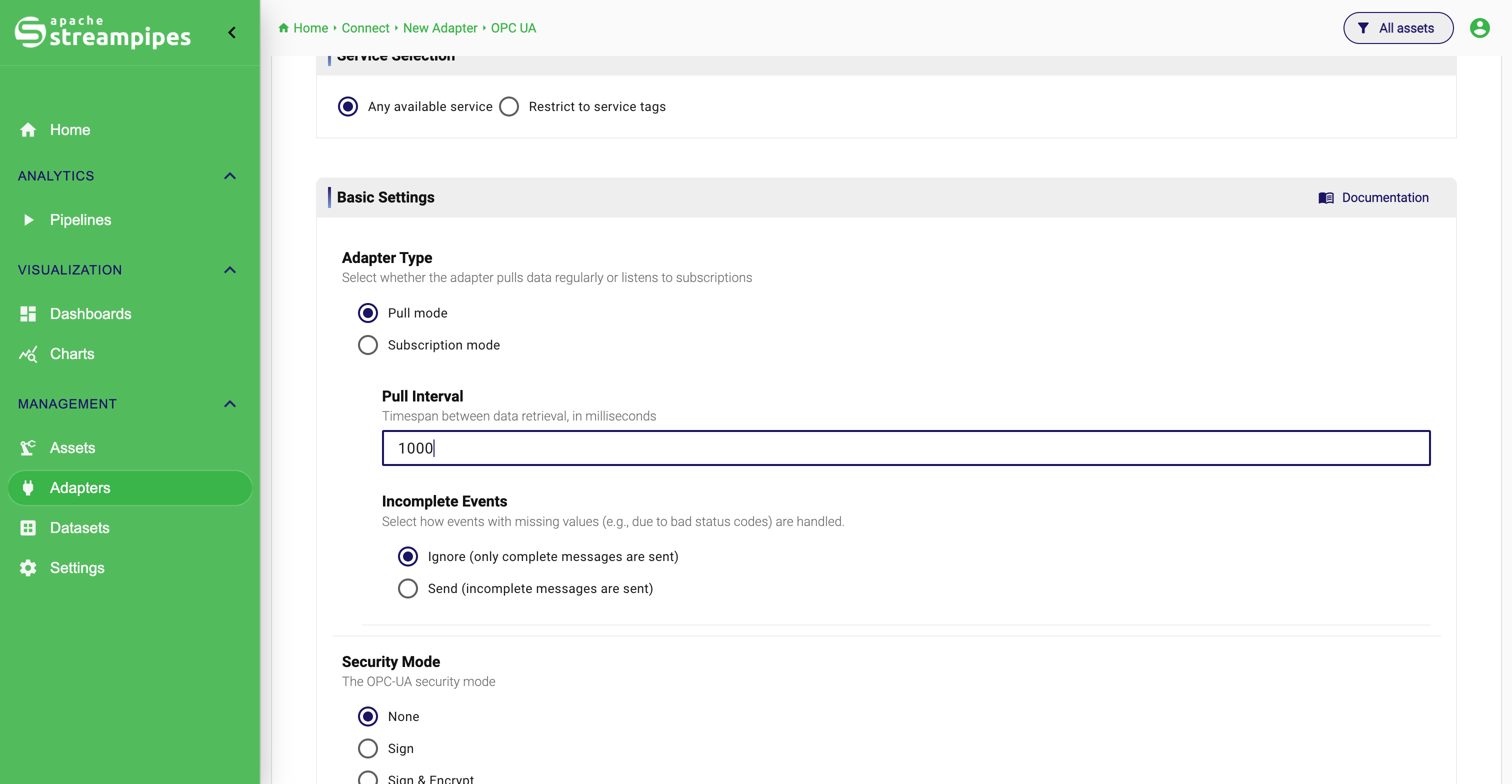
The first decision is how StreamPipes should receive data from the OPC UA server.
Pull mode reads the selected nodes at a fixed interval.
This is the simplest option when you want predictable periodic sampling or when the source does not need event-driven updates.
Subscription mode registers monitored items at the OPC UA server and receives updates when values change.
This is the better choice when you want low-latency updates and the server supports stable subscriptions.
If you select Pull mode, you must provide a pull interval in milliseconds.
The configured value can still be bounded by the extension service environment variable SP_OPCUA_MIN_PULL_INTERVAL_MS, which means the effective interval may be increased by the service if a lower bound is configured.
Configure the connection settings
After choosing the adapter mode, configure how StreamPipes should connect to the server.
Security mode and security policy
The adapter supports unsecured and secured OPC UA communication.
Noneis used for unsecured connections.Signeduses message signing.Signed & Encryptuses signing and encryption.
The selected security policy must match what the OPC UA server actually offers for the endpoint.
If the security mode is None, the policy should also be None.
User authentication
The adapter supports:
AnonymousUsername/Password
Use anonymous access when the OPC UA server exposes the required nodes without user credentials. Use username/password when the server requires application-level authentication in addition to the transport security settings.
Server address
You can define the server either as a full URL or by separating host and port. In practice, the full endpoint URL is usually clearer and less error-prone.
Example:
opc.tcp://test-server.com:4840
If the connection fails, verify first that the endpoint is reachable from the extension service container or host, not only from your browser machine.
OPC UA Adapter Basic Settings
Browse and select OPC UA nodes
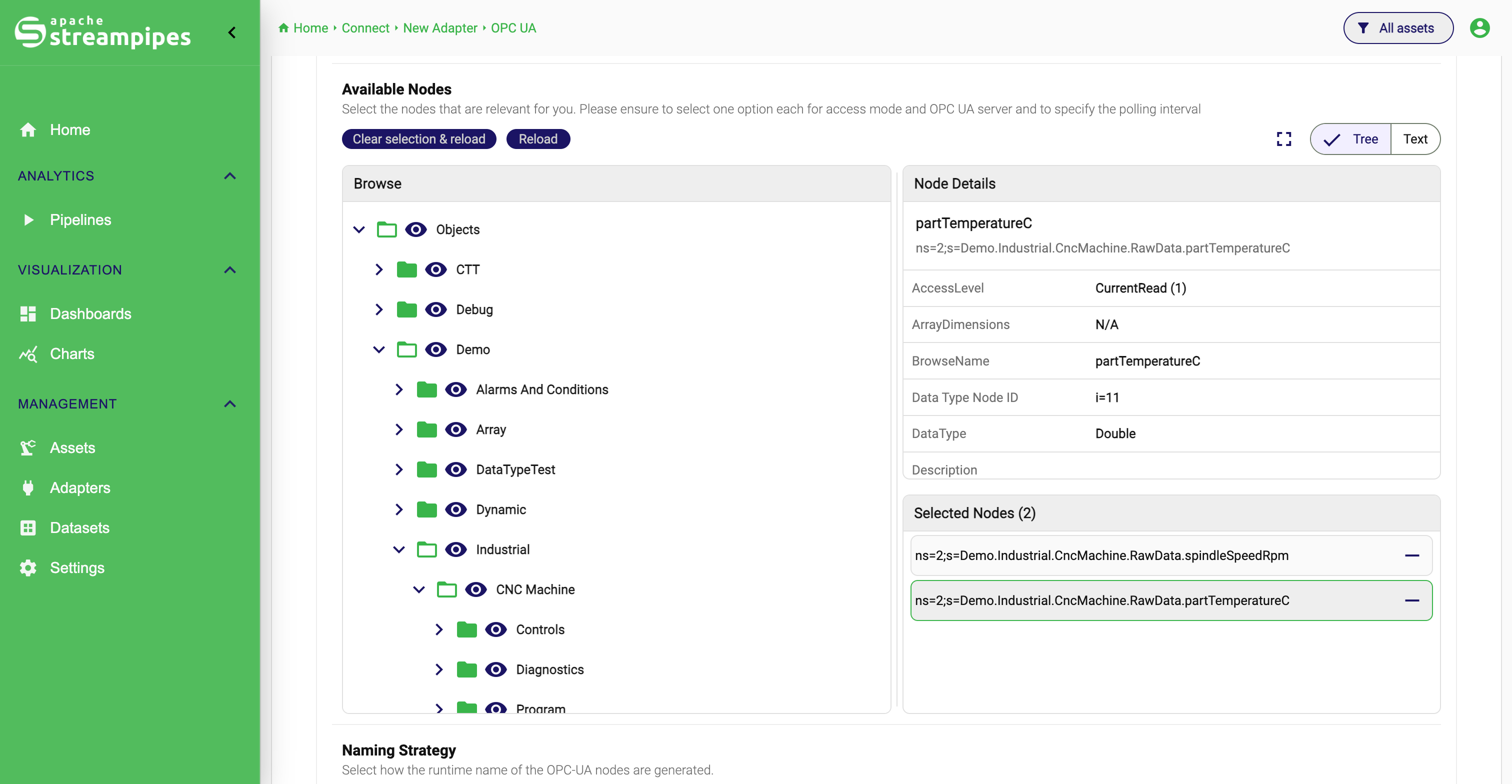
Once the server settings are in place, StreamPipes can browse the available nodes and let you select the values you want to ingest.
The adapter supports two ways of defining the node selection:
- tree-based browsing in the UI
- text-based editing of node IDs
The tree view is usually the best option for the first setup because it allows you to navigate the server structure and inspect node details before selecting them. The text view is useful when you already know the exact node IDs or want to copy selections between environments.
In the tree view, nodes can be inspected by clicking the eye icon. To select a node, click the plus icon.
The selected nodes must be valid OPC UA variable nodes. If a node ID does not exist or uses an invalid format, the adapter validation fails and StreamPipes reports the offending node ID in the error message.
Examples of valid node IDs look like this:
ns=2;s=Demo.Dynamic.Boolean
ns=2;s=Demo.Dynamic.Int32
OPC UA Node Selection
Finish the adapter setup
After selecting the nodes, continue with the standard StreamPipes adapter flow. In the schema step, review the generated fields, confirm that the event structure is meaningful, and adjust metadata where needed. In the final step, give the adapter a clear name and decide whether the events should be persisted immediately.
For a first setup, it is often useful to start with only a small number of nodes. That keeps validation easier and makes it obvious whether the basic connection works before you broaden the selection.
When to use pull mode and when to use subscription mode
Both modes are valid, but they suit different operational needs.
Use Pull mode when you want:
- periodic sampling at a fixed interval
- a simple and predictable setup
- control over how often values are read
Use Subscription mode when you want:
- near real-time value updates
- server-driven change notifications
- less emphasis on fixed sampling intervals
If you are unsure, start with pull mode. It is easier to reason about during initial onboarding, and it gives you a straightforward path for validating endpoint access, authentication, and node selection.
How OPC UA certificates work in StreamPipes
Certificate handling becomes relevant when the OPC UA server uses Signed or Signed & Encrypt.
In that case, the StreamPipes extension service needs its own OPC UA client certificate and a writable OPC UA security directory.
The OPC UA extension uses the following environment variables:
| Variable | Purpose |
|---|---|
SP_OPCUA_SECURITY_DIR | Base directory for the OPC UA keystore and PKI folders |
SP_OPCUA_KEYSTORE_FILE | PKCS#12 keystore file used or created by the client |
SP_OPCUA_KEYSTORE_PASSWORD | Password for the keystore |
SP_OPCUA_KEYSTORE_TYPE | Keystore type, typically PKCS12 |
SP_OPCUA_KEYSTORE_ALIAS | Alias used for the client certificate entry |
SP_OPCUA_APPLICATION_URI | Application URI used by the OPC UA client identity |
By default, the OPC UA security directory is expected at:
/streampipes-security/opcua
If the configured keystore does not exist yet, StreamPipes creates a client certificate and a PKCS#12 keystore automatically when the OPC UA client is first used.
The directory structure is organized as a PKI folder:
SP_OPCUA_SECURITY_DIR/
├─ pki/
│  ├─ issuers/
│  ├─ rejected/
│  ├─ trusted/
│  │  ├─ certs/
│  │  ├─ crl/
In practical terms, that means:
- newly encountered or untrusted certificates can appear as rejected
- trusted certificates are stored in the trusted PKI area
- the extension service needs write access to this directory
Trust or reject certificates in Extension Services
Upon connection, StreamPipes checks if the provided server certificate can be trusted. If an error occurs while validating the certificate, an errors is shown:
OPC UA Untrusted Connection
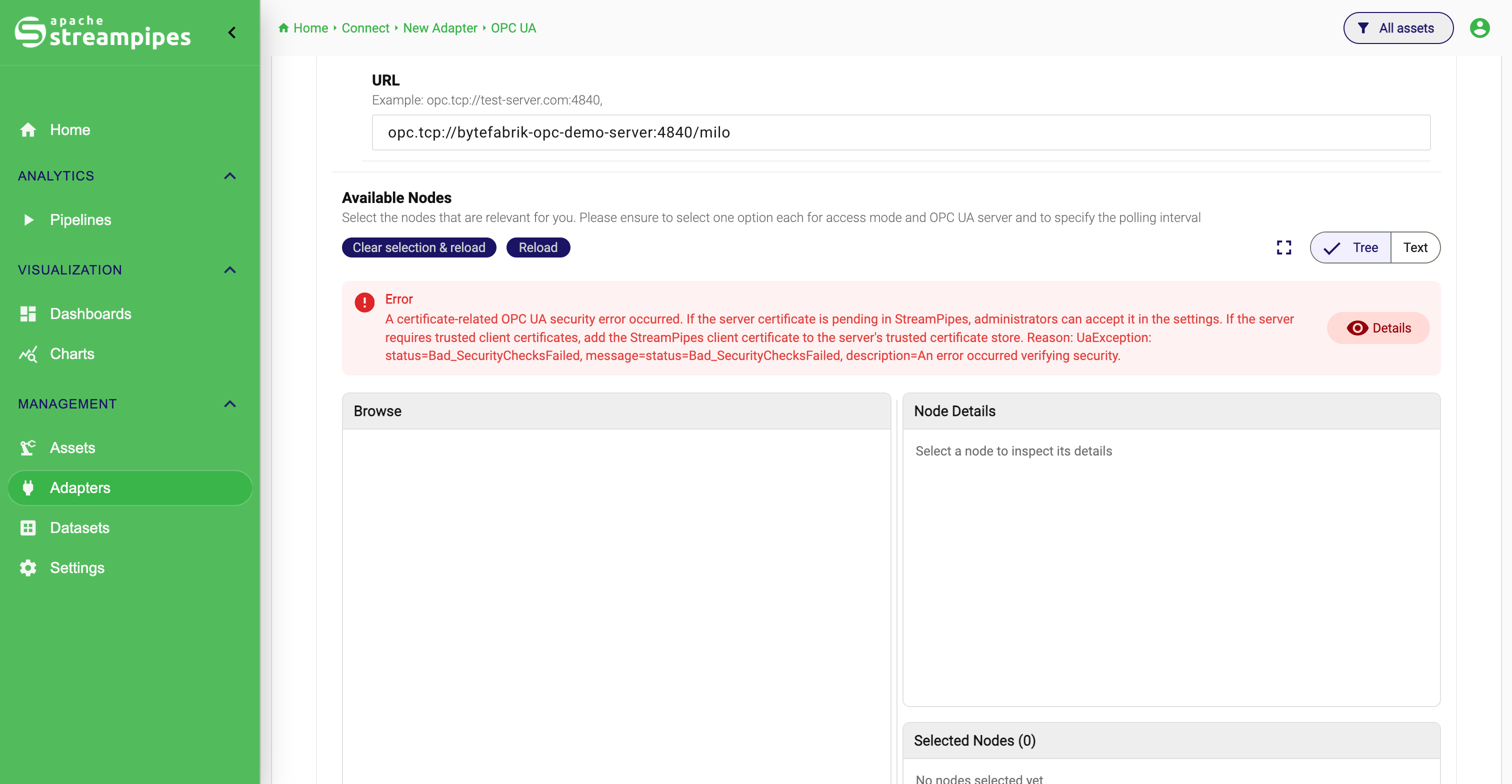
If the certificate of the OPC UA server is not found in the trust store, it can also be manually trusted from the UI. This is an administrator-only view. An OPC UA server which provides a certificate that cannot be trusted is added to the list of untrusted servers in the core.
StreamPipes exposes the current OPC UA certificates in Configuration > Extension Services, in the Certificates section.
This is the operational view for reviewing and changing trust decisions after the extension service has seen a certificate.
The table shows each certificate together with its issuer and expiry date. For every entry, StreamPipes provides actions to inspect details, switch the state between trusted and rejected, and delete the certificate entry entirely.
Typical trust workflow
In a normal secured OPC UA onboarding flow, the sequence looks like this:
- Configure the OPC UA adapter with the secured endpoint.
- Let the extension service attempt the connection.
- Open
Configuration > Extension Services > Certificates. - Inspect the presented certificate.
- Mark it as
Trustedif it matches the expected OPC UA server. - Retry or continue the adapter setup.
This workflow is useful because trust is not managed deep in the file system only. Instead, operators can review the observed certificates directly from the StreamPipes UI.
What the certificate actions mean
Details opens the certificate metadata so you can inspect the issuer, validity period, subject alternative names, thumbprint, and related fields before making a trust decision.
Trust moves the certificate into the trusted state.
Use this when the certificate belongs to the OPC UA server you intend to connect to.
Reject marks a previously trusted certificate as rejected again.
Use this when a certificate should no longer be accepted.
Delete removes the certificate entry from StreamPipes entirely.
This is usually more drastic than necessary and is best reserved for cleanup or for certificates that should disappear from the operational view.
Certificate requirements for custom certificates
If you provide your own X.509 material instead of relying on the automatically created client certificate, the certificate must fulfill the adapter requirements.
The OPC UA documentation in the extension expects the certificate to include:
- key usage for certificate signing
- a subject alternative name that contains the application URI
CA:FALSEin the basic constraints when using a self-signed certificate- extended key usages for TLS web server authentication and TLS web client authentication
Common issues
The server cannot be reached
Check the endpoint URL, host, and port first. Then verify network reachability from the extension service runtime, not only from your local browser session.
The node browser is empty
This usually means one of three things: the connection settings are wrong, the selected security/authentication settings do not match the endpoint, or the user has no permission to browse the address space.
Selected nodes fail validation
The adapter only accepts valid OPC UA variable nodes. If a manually entered node ID has the wrong format or the node does not exist on the server, StreamPipes reports the invalid node during validation.
A secured endpoint still does not connect
When security mode is Signed or Signed & Encrypt, inspect the Certificates section in Extension Services.
In many cases, the missing step is simply that the presented server certificate has not yet been trusted.
Recommended first setup
For the first successful OPC UA integration, keep the setup small and deterministic:
- Start with one known endpoint.
- Use anonymous access if the server allows it.
- Select only one or two variable nodes.
- Prefer pull mode for the first validation.
- Move to secured communication and broader node sets after the basic connection is proven.
That sequence reduces the number of unknowns and makes it much easier to see whether a problem is caused by connectivity, authentication, certificate trust, or the selected nodes.