Integrate OPC UA events
The OPC UA Events adapter is used when you want to receive OPC UA event notifications such as alarms and conditions instead of reading ordinary variable values.
Unlike the regular OPC UA adapter, this adapter creates an event subscription and emits a flat event payload whenever the OPC UA server reports a matching event.
This page explains how to configure the adapter, how event type and additional fields work, and what to expect during preview and operation.
When to use this adapter
Use the normal OPC UA adapter when you want to read telemetry values from variable nodes such as temperatures, counters, or machine states.
Use OPC UA Events when the server emits notifications such as alarms, conditions, or other event objects that should be forwarded into StreamPipes as discrete events.
Typical use case
A machine or line controller exposes alarms via OPC UA. Instead of polling variable nodes every second, StreamPipes should receive event notifications only when a new alarm is raised, updated, or cleared.
Before you start
Before creating the adapter, make sure that:
- the
OPC UA Eventsextension is installed and available inConnect - the OPC UA server is reachable from the StreamPipes extension service
- you know the endpoint URL and authentication mode
- you know whether you want to listen to the whole server or only to a specific notifier node
- the server actually emits OPC UA events for the event type you want to observe
If the endpoint uses signed or encrypted OPC UA communication, the same certificate handling as on the regular OPC UA page applies.
The trust workflow is managed in Configuration > Extension Services > Certificates.
Create the OPC UA Events adapter
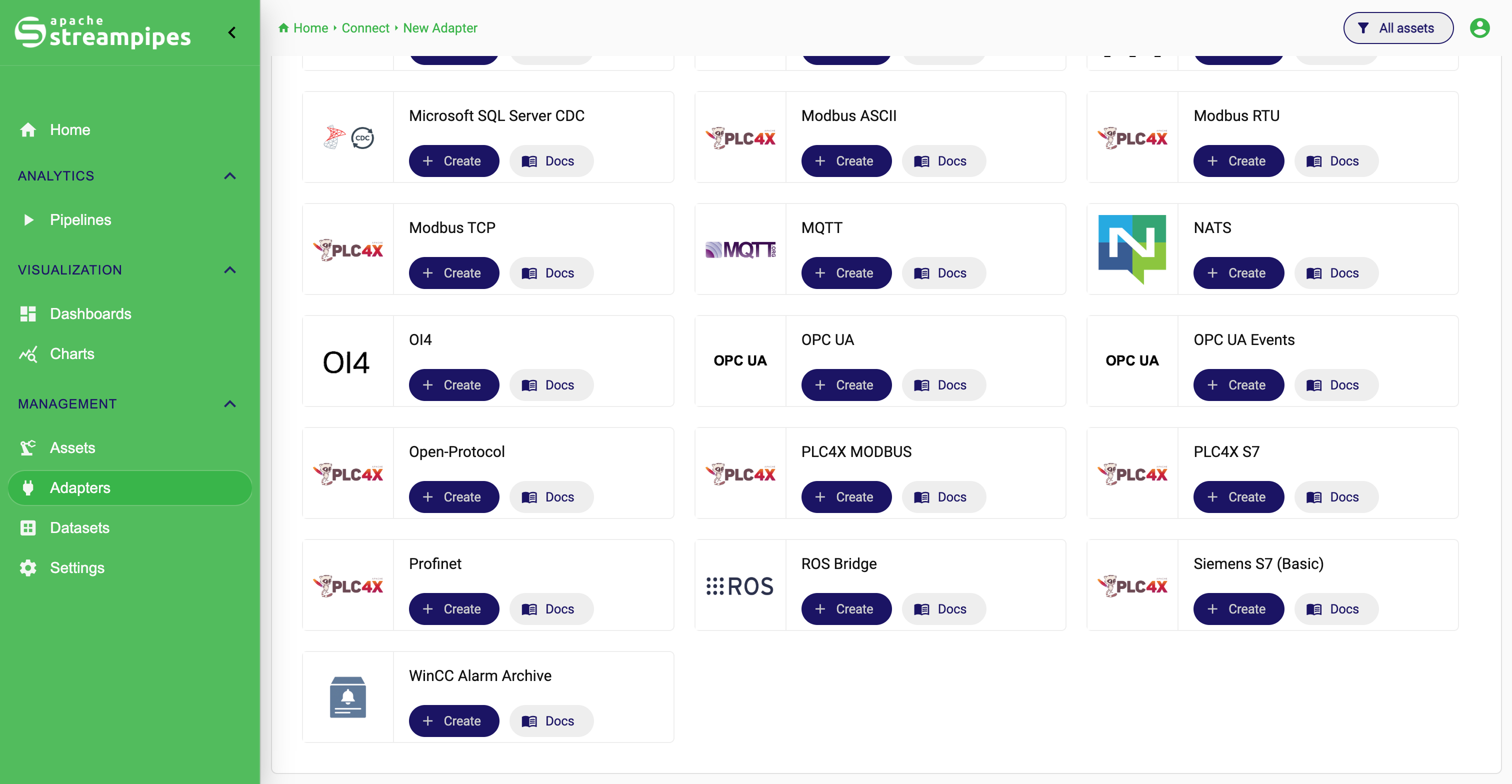
Open Connect, click New Adapter, and select OPC UA Events.
The configuration starts with the same connection settings as the regular OPC UA adapter.
OPC UA Events Adapter Selection
Configure the OPC UA connection
The connection part is shared with the standard OPC UA adapter. You configure:
- endpoint URL or host/port
- security mode
- security policy
- user authentication
- optionally X.509 certificate authentication
For unsecured endpoints, use None as security mode and policy.
For secured endpoints, make sure the selected mode and policy match the server endpoint exactly and that the server certificate is trusted in Extension Services.
If the server uses username/password authentication, provide those credentials in the adapter. If it uses X.509 authentication, provide the corresponding client certificate material expected by the adapter configuration.
Choose where events should come from
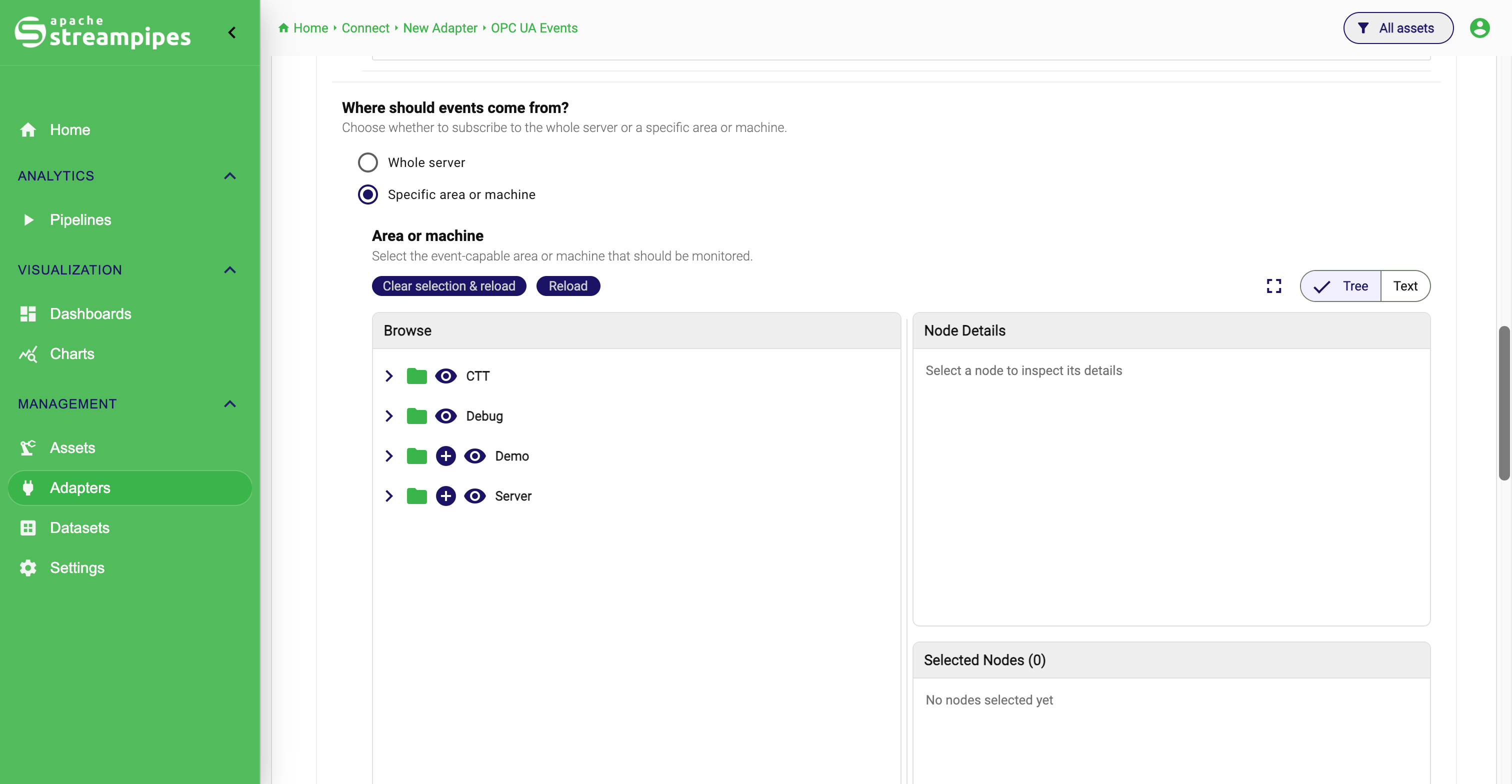
The next important decision is the event source scope. The adapter supports two modes:
Whole serverSpecific area or machine
Whole server subscribes against the OPC UA server object and receives matching events from the entire server.
This is the best starting point when you first want to verify that event delivery works at all.
Specific area or machine limits the subscription to one event-capable notifier node.
This is useful when only one machine, production cell, or logical area should be observed.
If you choose a specific area or machine, StreamPipes loads a notifier tree from the OPC UA address space. Only event-capable object nodes are selectable there.
OPC UA Events Event Source
Select the event type
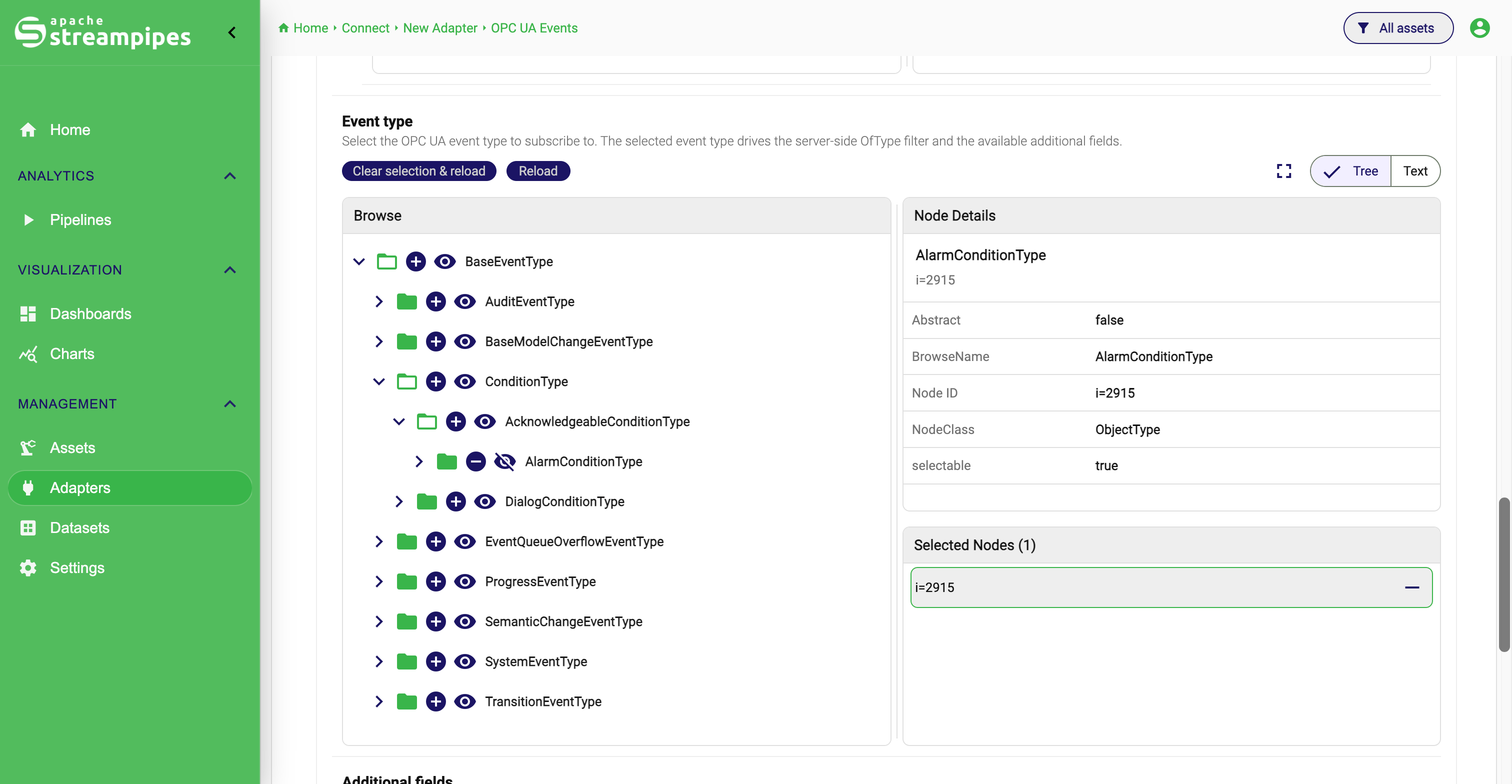
After defining the source scope, select the OPC UA event type. This step is central to how the adapter works.
The selected event type drives two things at once:
- the server-side
OfType(...)filter used for the subscription - the list of additional event fields that can be selected afterwards
If no specific event subtype is selected, the behavior falls back to a broad base event type. In practice, however, selecting the concrete event type you care about makes the result more precise and makes the optional field list much more useful.
The event type tree is ordered alphabetically by browse name, so it is usually easiest to start with the family you expect, such as a base alarm type or a more specialized condition subtype.
OPC UA Events Event Types
Add optional event fields carefully
The adapter always includes a compatibility-safe base field set internally:
sourceNameseveritysourceNodemessagetimeeventIdeventType
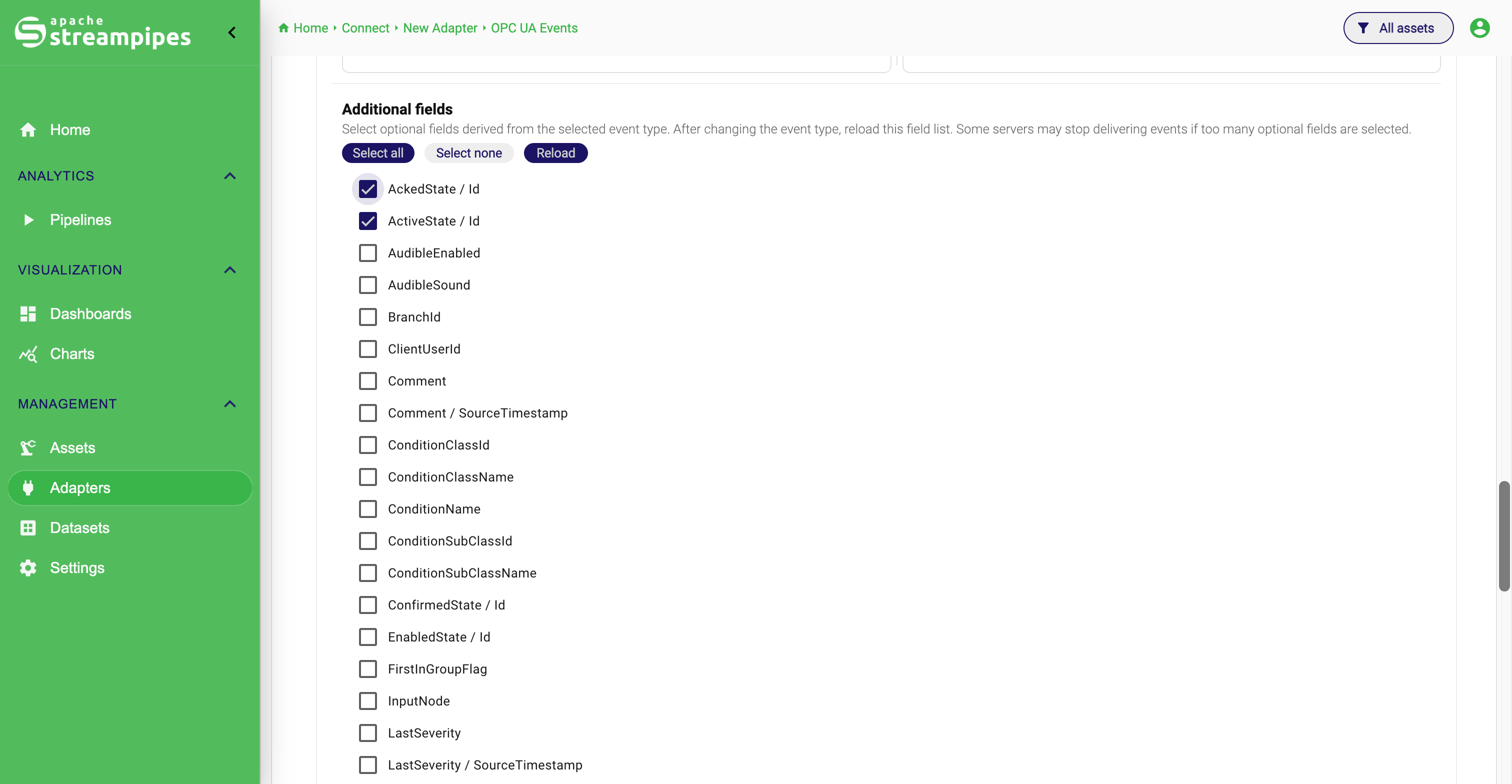
On top of that, you can add fields in the Additional fields section.
These optional fields are derived from the selected event type and its supertypes.
That makes the setup powerful, but also more sensitive. Some OPC UA servers stop delivering events when too many optional fields are requested or when a field is theoretically valid in the type system but not implemented correctly by the server runtime.
The safest workflow is:
- select the event type
- verify that preview works with only the base fields
- reload the additional field list
- add optional fields incrementally
- keep the largest field set that still delivers events reliably
If you change the selected event type later, reload the additional fields list before continuing. The available fields depend on the chosen type.
OPC UA Events Additional Fields
Configure event filters
The adapter supports a small set of user-facing filters that reduce the events forwarded into StreamPipes.
You can choose between:
- all matching events
- only events whose
sourceNamecontains a given text - a minimum severity threshold
The source-name filter performs a substring match against the OPC UA SourceName field.
The minimum severity filter keeps only events whose numeric severity is greater than or equal to the configured threshold.
These filters are useful when a server emits many events and you only want the subset that matters operationally. For example, a broad server subscription can still be made manageable by limiting it to one source-name pattern and a minimum severity.
Understand preview behavior
The preview step for this adapter behaves differently from value-oriented adapters. It does not read a snapshot of current variable values. Instead, it waits for a live OPC UA event notification that matches the current configuration.
This has two important consequences.
First, a valid connection does not guarantee that preview data appears immediately. The server must emit a new matching event while the preview is active.
Second, some OPC UA servers do not automatically replay retained or already-active alarms during preview. That means a preview timeout can happen even though the configuration is technically correct.
When that happens, validate the setup step by step:
- confirm that the endpoint is reachable
- start with
Whole server - choose a broad event type first
- use only the base field set
- remove restrictive filters temporarily
- trigger a known alarm or event on the source side
Output model
The adapter emits a flat event payload as a Map<String, Object>.
The base event fields are always part of the output.
Selected additional fields are appended to the schema and included in the emitted events when the server provides values.
Several OPC UA-specific types are normalized into script-friendly values. For example:
ByteStringbecomes a Base64 stringDateTimebecomes a Unix timestamp in millisecondsNodeId,ExpandedNodeId, andQualifiedNamebecome parseable strings
This makes the resulting event data easier to use downstream in StreamPipes charts, datasets, pipelines, and scripts.
Certificates and trust
For secured endpoints, the adapter depends on the same OPC UA client certificate and trust setup as the regular OPC UA adapter.
The extension service needs a writable OPC UA security directory, and server certificates have to be trusted before the secured connection can work reliably.
Operationally, the important point is simple:
- attempt the secured connection
- open
Configuration > Extension Services > Certificates - inspect the discovered certificate
- mark it as
Trustedif it belongs to the expected OPC UA server - retry preview or start the adapter again
If you need the full certificate background, environment variables, and PKI directory explanation, see Integrate OPC UA data.
Common issues
Preview stays empty even though the connection works
This often means the server did not emit a new matching event during the preview window. Broaden the configuration first and trigger a known event manually on the source side if possible.
Events stop after adding optional fields
This is a known compatibility pattern with some OPC UA servers. Reduce the selected additional fields and add them again one by one until you find a stable set.
No events arrive for a specific notifier node
Switch temporarily to Whole server.
If that works, the selected notifier node may not actually be the correct event source or may not expose events the way the server expects.
Filters are too restrictive
A source-name substring and a high minimum severity can easily filter out everything. Test first without filters, then narrow the stream afterwards.
Recommended first setup
For the first successful OPC UA events integration, start with the simplest reliable path:
- use
Whole server - keep the security setup as simple as the source allows
- choose a broad event type first
- leave additional fields at the base set initially
- do not configure restrictive filters yet
- trigger a real event at the source
Once that works, narrow the scope to a specific area or machine, select a more concrete event subtype, and add optional fields and filters gradually.